> For the complete documentation index, see [llms.txt](https://docs.betterbuilding.io/llms.txt). Markdown versions of documentation pages are available by appending `.md` to page URLs; this page is available as [Markdown](https://docs.betterbuilding.io/user-guide/workflows/energy-efficiency/ashrae-90.1-2019/ashrae-90.1-appendix-g-2019-outputs.md).
# ASHRAE 90.1 Appendix G 2019 Outputs
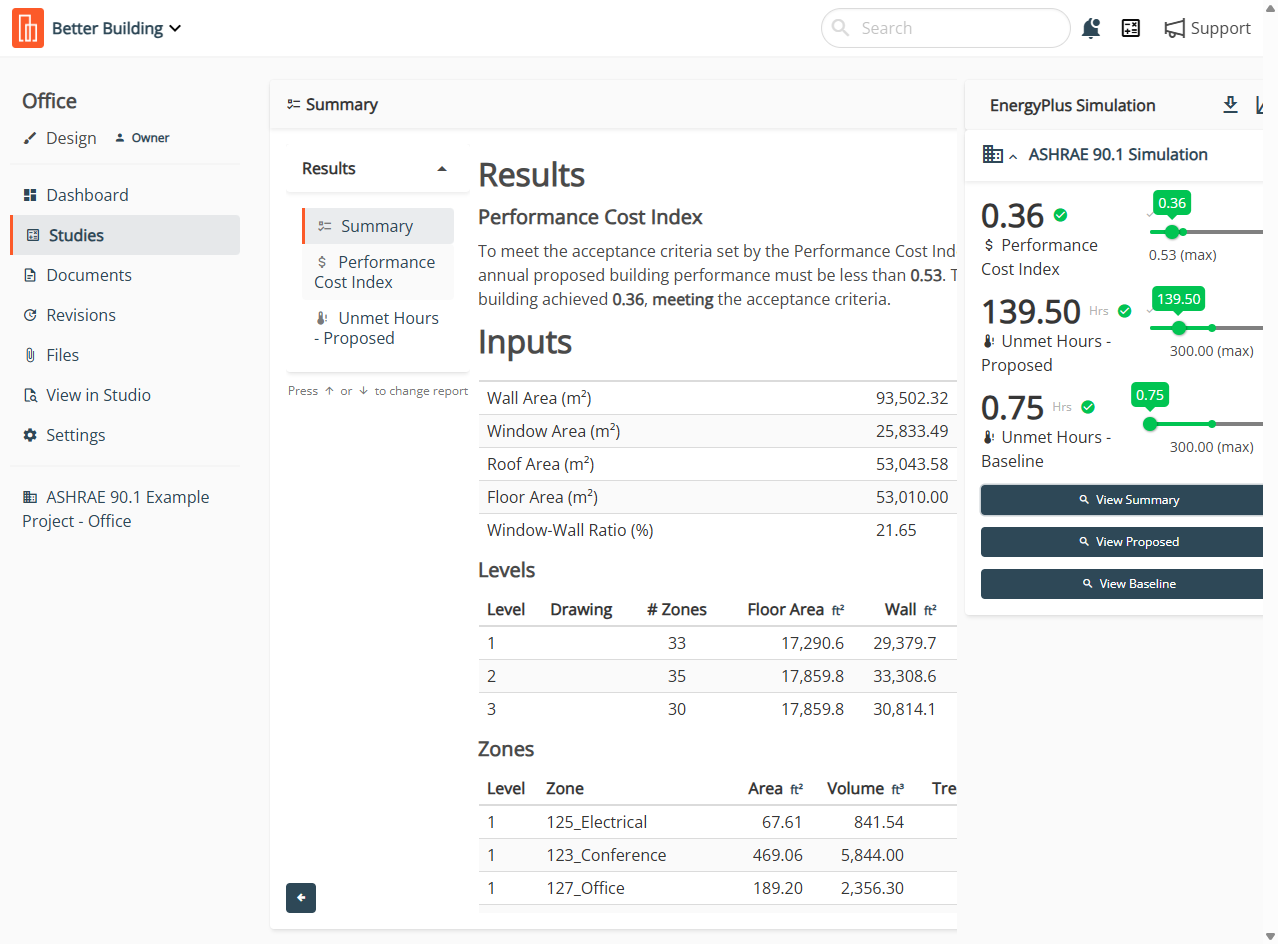
After running an ASHRAE 90.1 Appendix G compliance analysis, your results are post-processed automatically and appear in the View Summary page. You'll also see data for both the proposed design in View Proposed and the baseline building in View Baseline.
## View Summary
### Summary
The Summary tab shows your Performance Cost index Target (the number you need to exceed) along with the primary inputs that feed into the PCI calculation. This is where you verify the basics before accepting the results. It's worth scanning through, catching an input error here is easier than explaining why your compliance report has changed later on.
### Performance Cost Index Tab
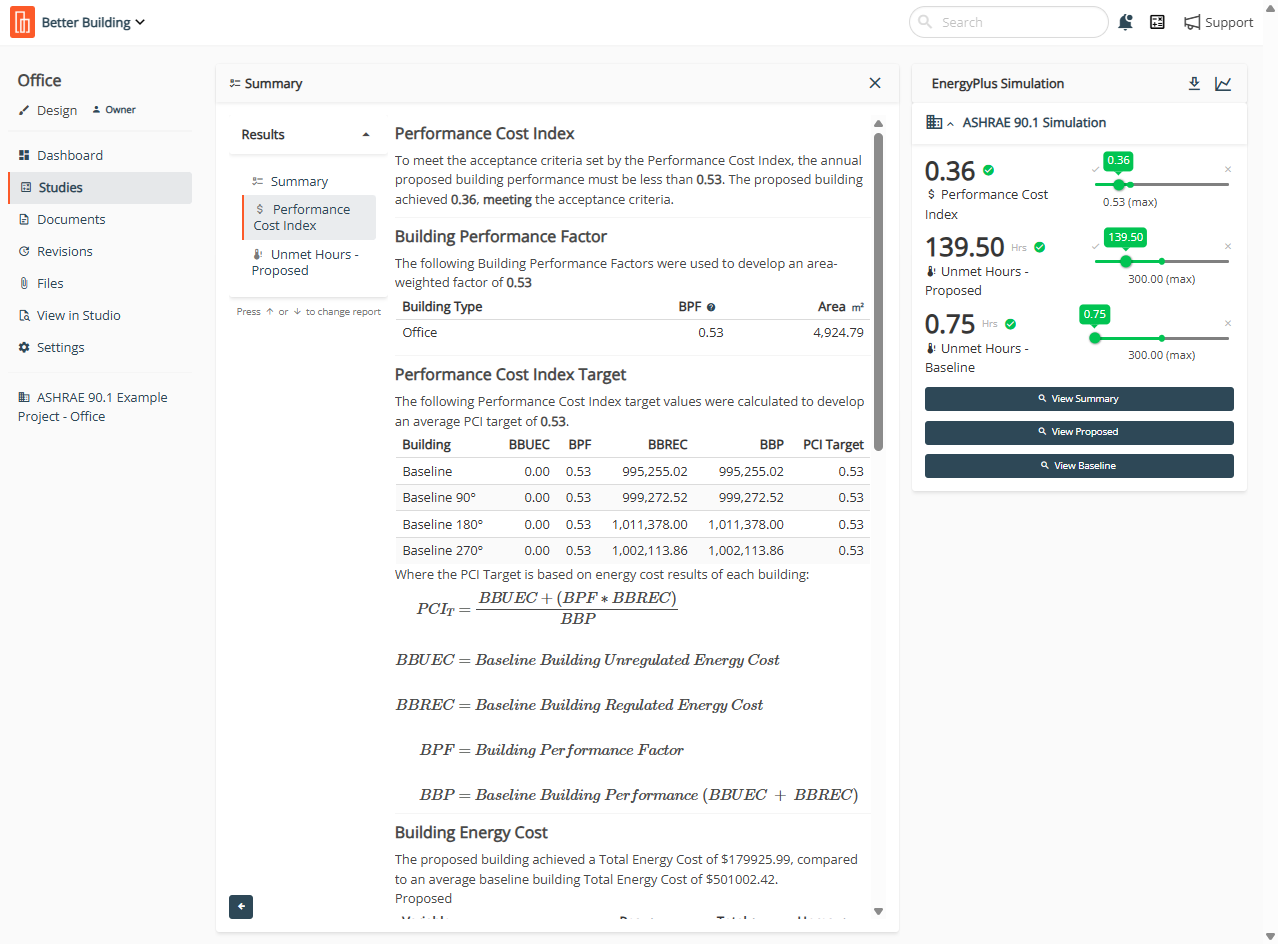
Under the Performance Cost Index tab, you get the full breakdown of how the PCI was actually calculated. This includes the Building Performance Factor applied to your project, the Building Type classification, and the total area used in the calculation. The Building Energy Costs are shown here as well. These establish the reference point your proposed design is measured against.
### Unmet Hours
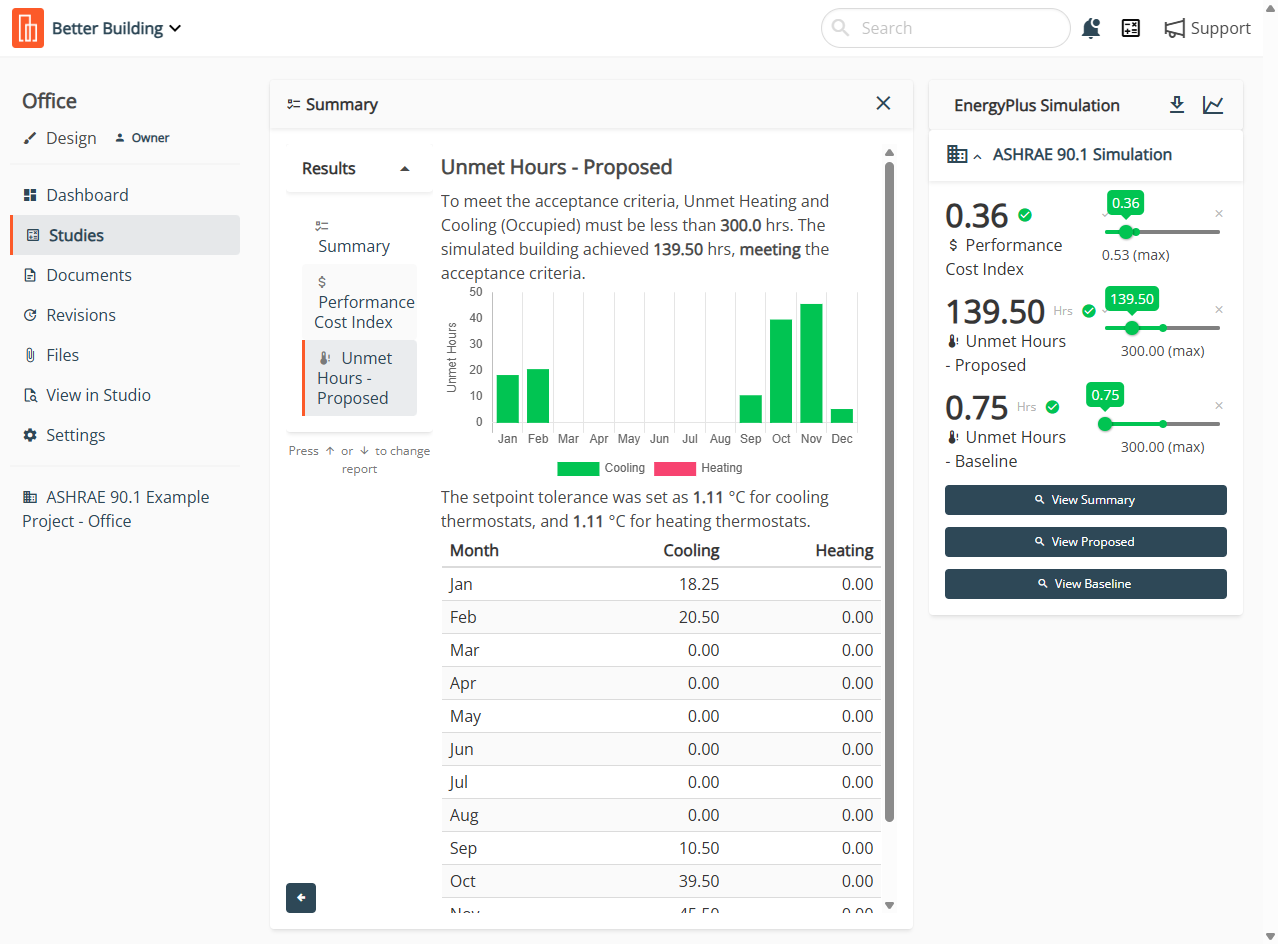
The proposed design's Unmet Hours are tabulated separately. The target is 300 hours, which you must not exceed. The setpoint tolerances for both cooling and heating are stated here, so you can see exactly what temperature range defines "unmet" for your project.
## View Proposed
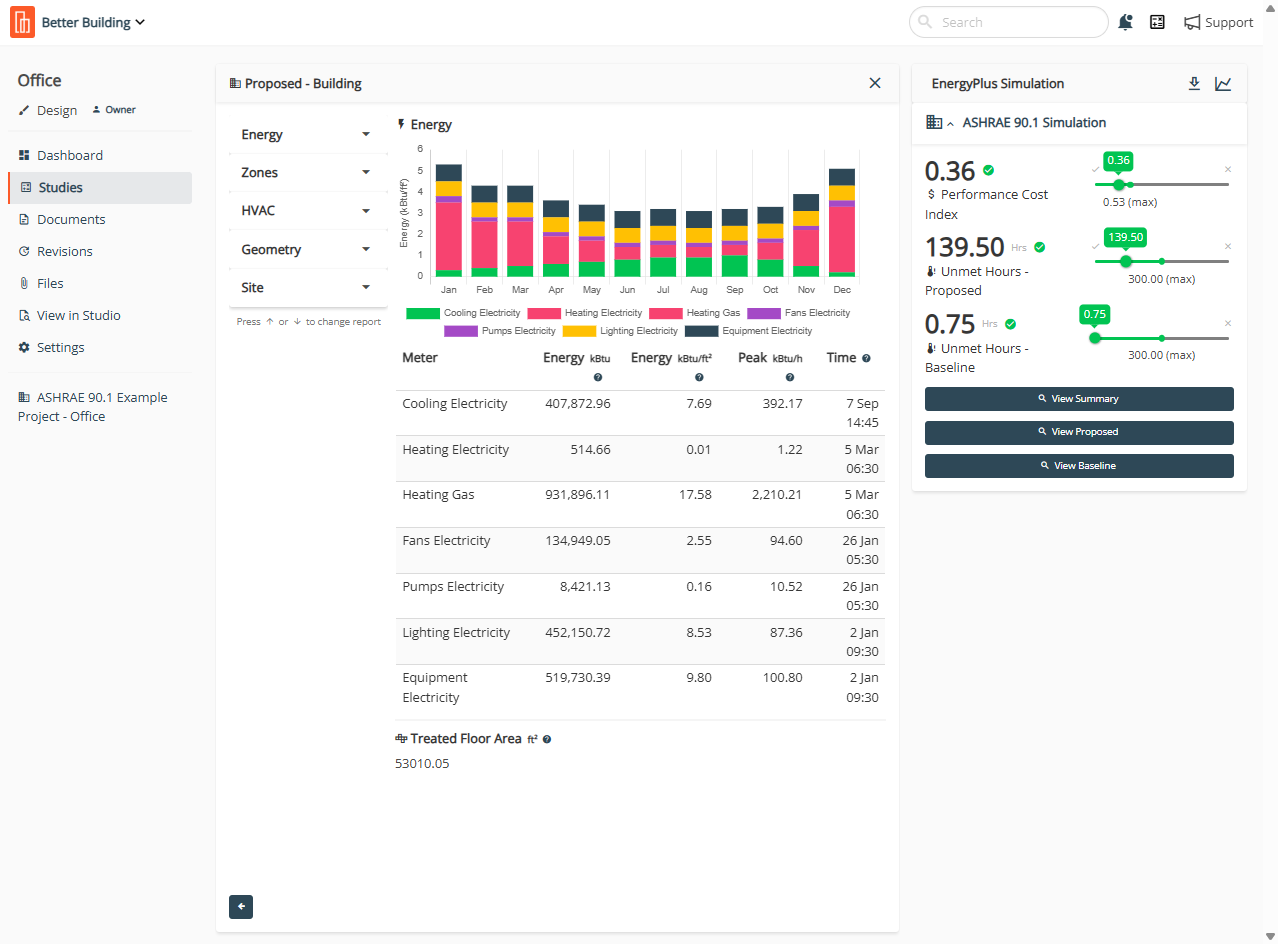
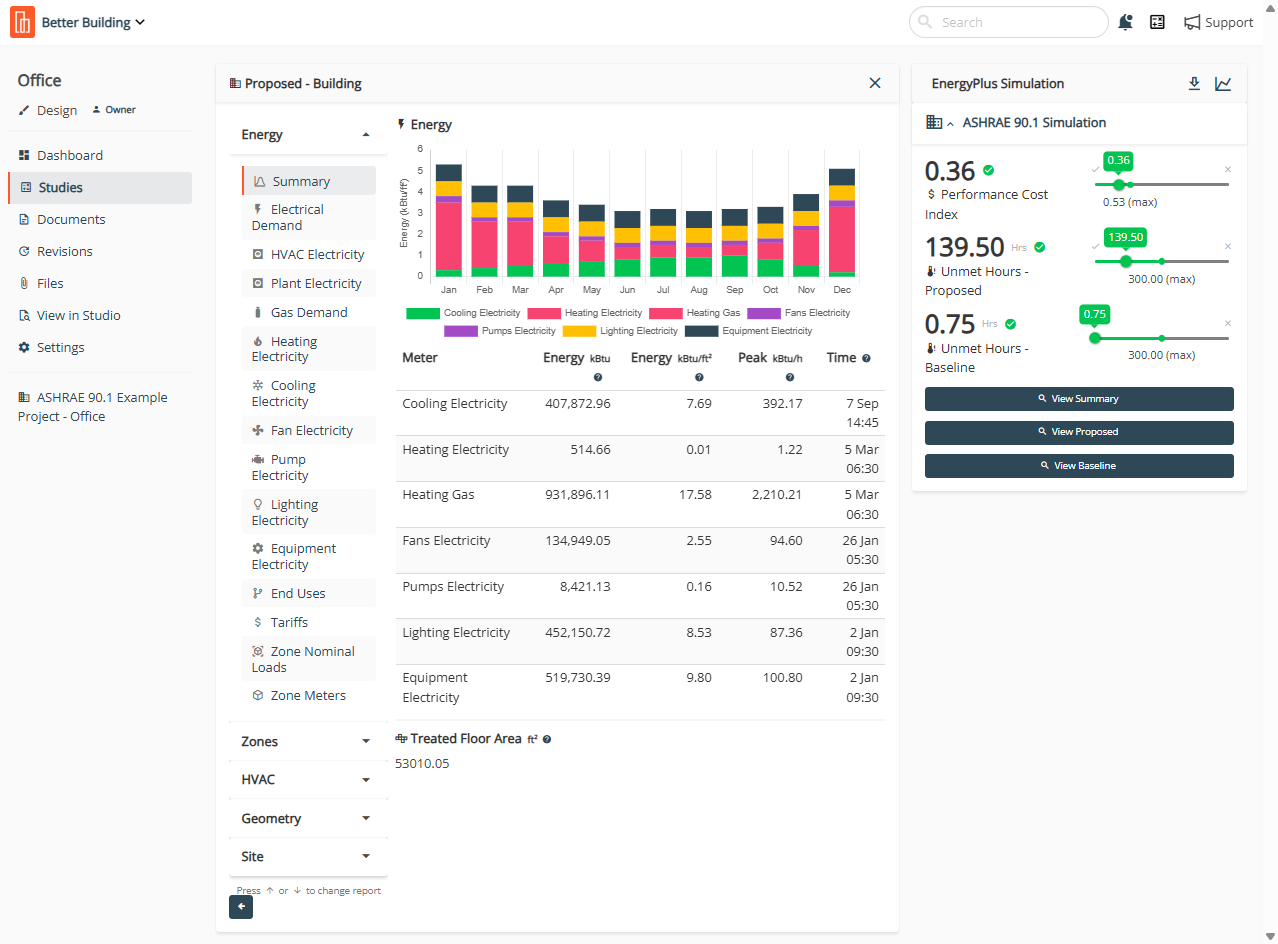
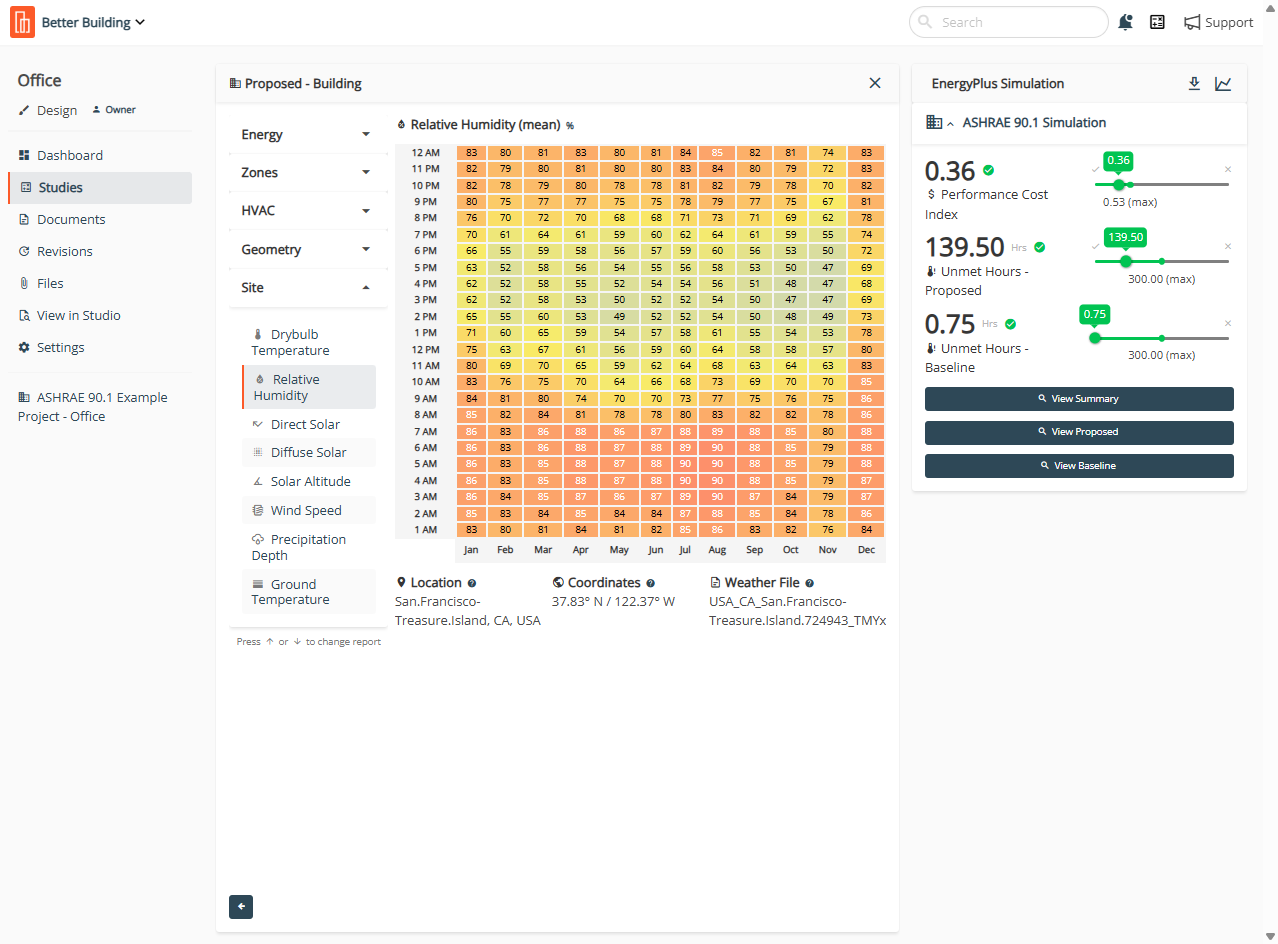
The View Proposed page is where you go when the Summary View isn't enough and you need to actually understand what's happening in your model. This is your detailed look at Energy, Zones, HVAC, Geometry, and Site data. The whole point is to catch discrepancies before they become problems.
### Energy
Under Energy, you get a detailed breakdown of your primary energy loads. Supporting tabs cover Electrical Demand, HVAC Electricity, Plant Electricity, Gas Demand (if applicable), Heating Electricity, Cooling Electricity, Fan Electricity, Pump Electricity, Lighting Electricity, and Equipment Electricity. End Uses, Tariff assumptions, nominal loads for Zones, and Zone Meters are also in there.
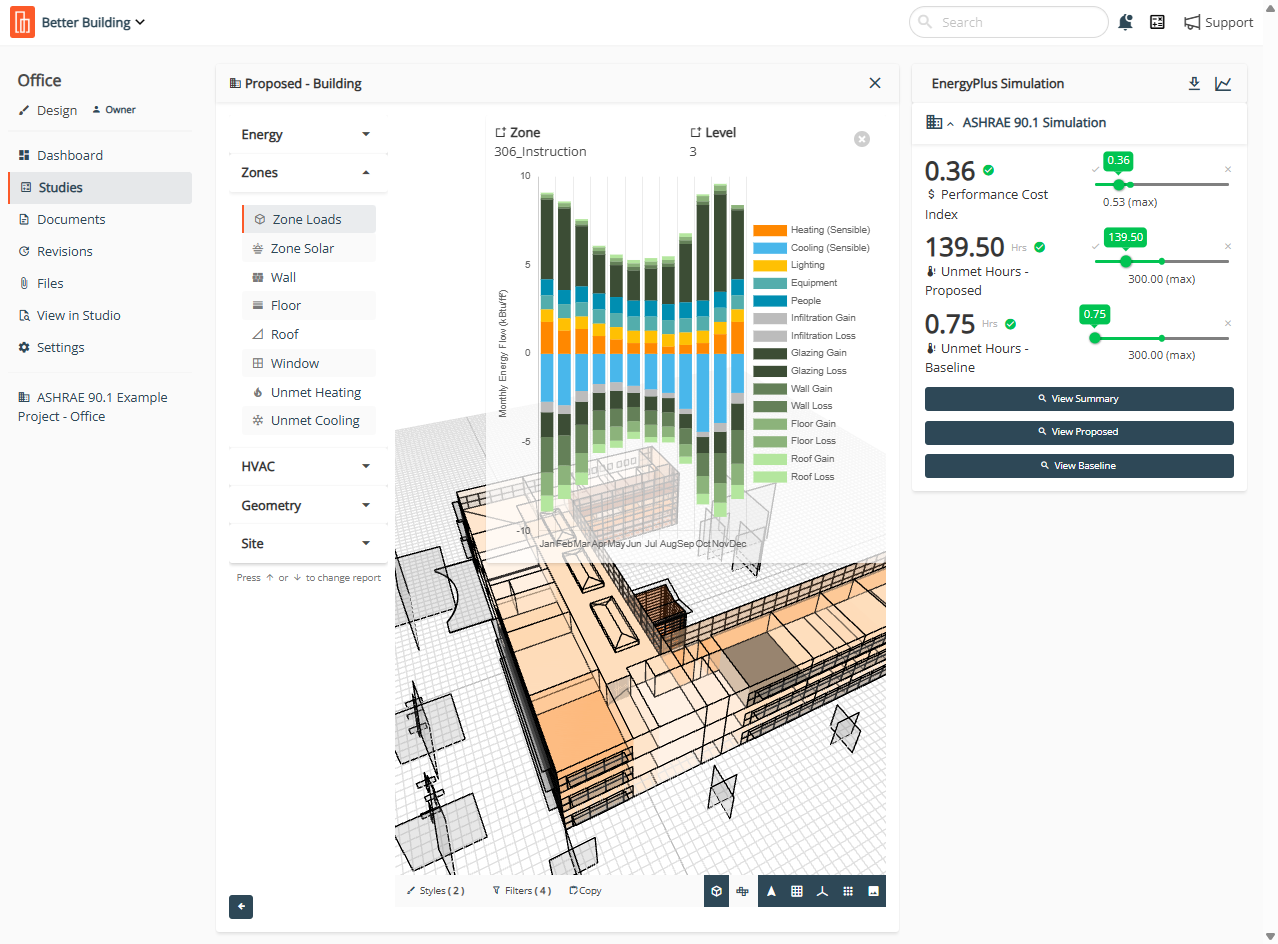
### Zones
The Zones section gives you multiple ways to review zone-level data, which matters because problems tend to hide at the zone level.
**Zone Loads** lets you hover over individual zones to see heating and cooling loads plus heat transfer flows on a monthly basis.
**Zone Solar Loads** provides a monthly overview of solar gains for each zone.
**Walls, Floors, and Roofs** each enable heat gain, heat loss, and heat transfer assessments. Same data, different building elements. You can check whether your thermal performance assumptions actually made it into the model.
**Windows** add transmitted solar to the mix, on top of heat gain, heat loss, and heat transfer. Windows are almost always more complicated than they need to be, so having a dedicated view helps.
**Unmet Heating and Unmet Cooling** provide zone-by-zone breakdowns of where your HVAC system isn't keeping up. This is critical for the 300-hour compliance requirement, and it's much easier to address when you know exactly which zones are the problem.
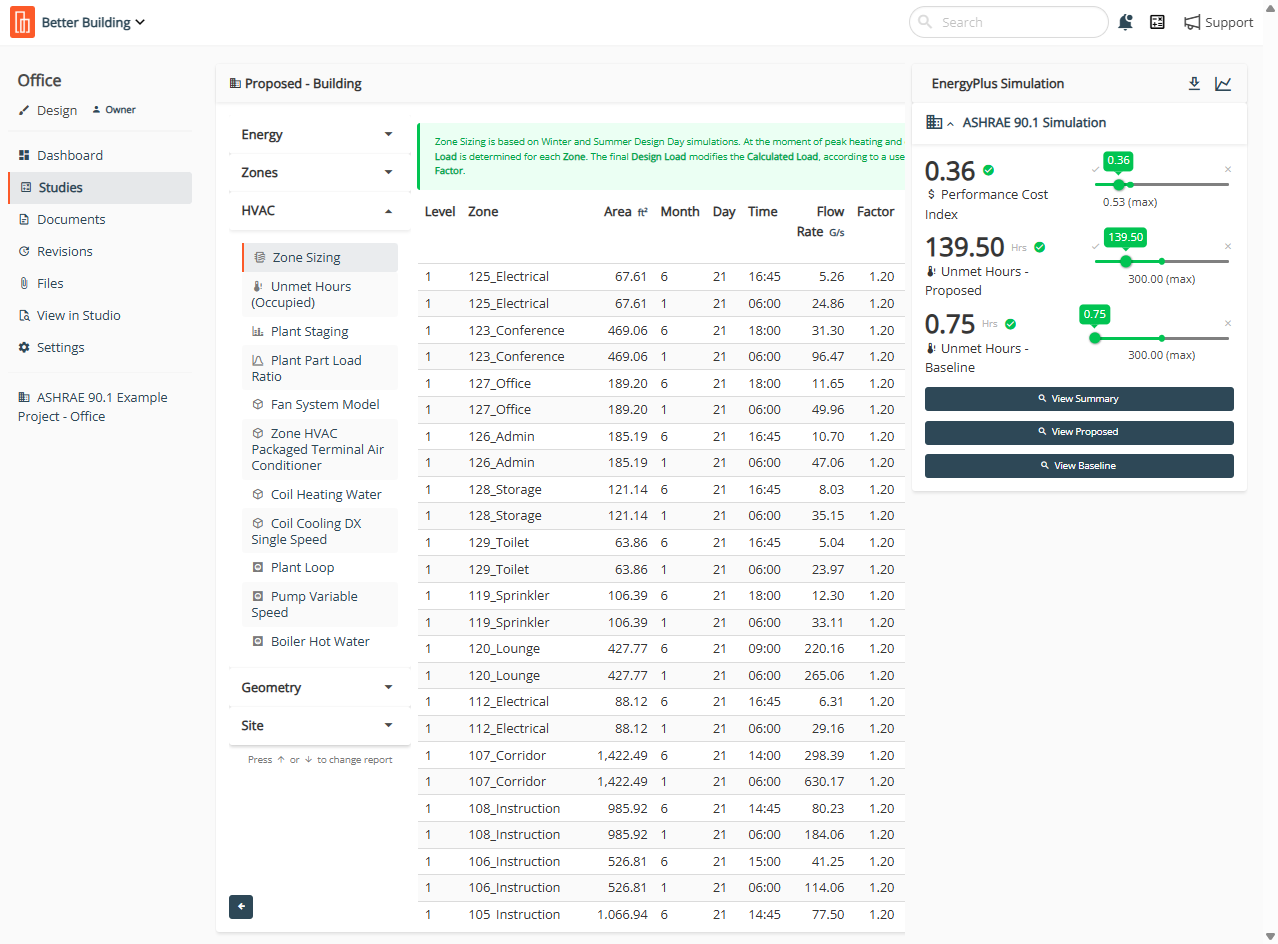
### HVAC
The HVAC tab shows zone sizing and unmet hours, along with detailed information about every component in your proposed HVAC system. What actually appears here is highly variable because HVAC systems are highly variable. A VAV system with a central plant looks nothing like a bunch of split units, so the data shown adapts to whatever you've modeled. This makes the tab useful but challenging to document comprehensively, because what you see depends entirely on what you designed. See [HVAC ](/user-guide/2d-building/building/hvac.md)for more info.
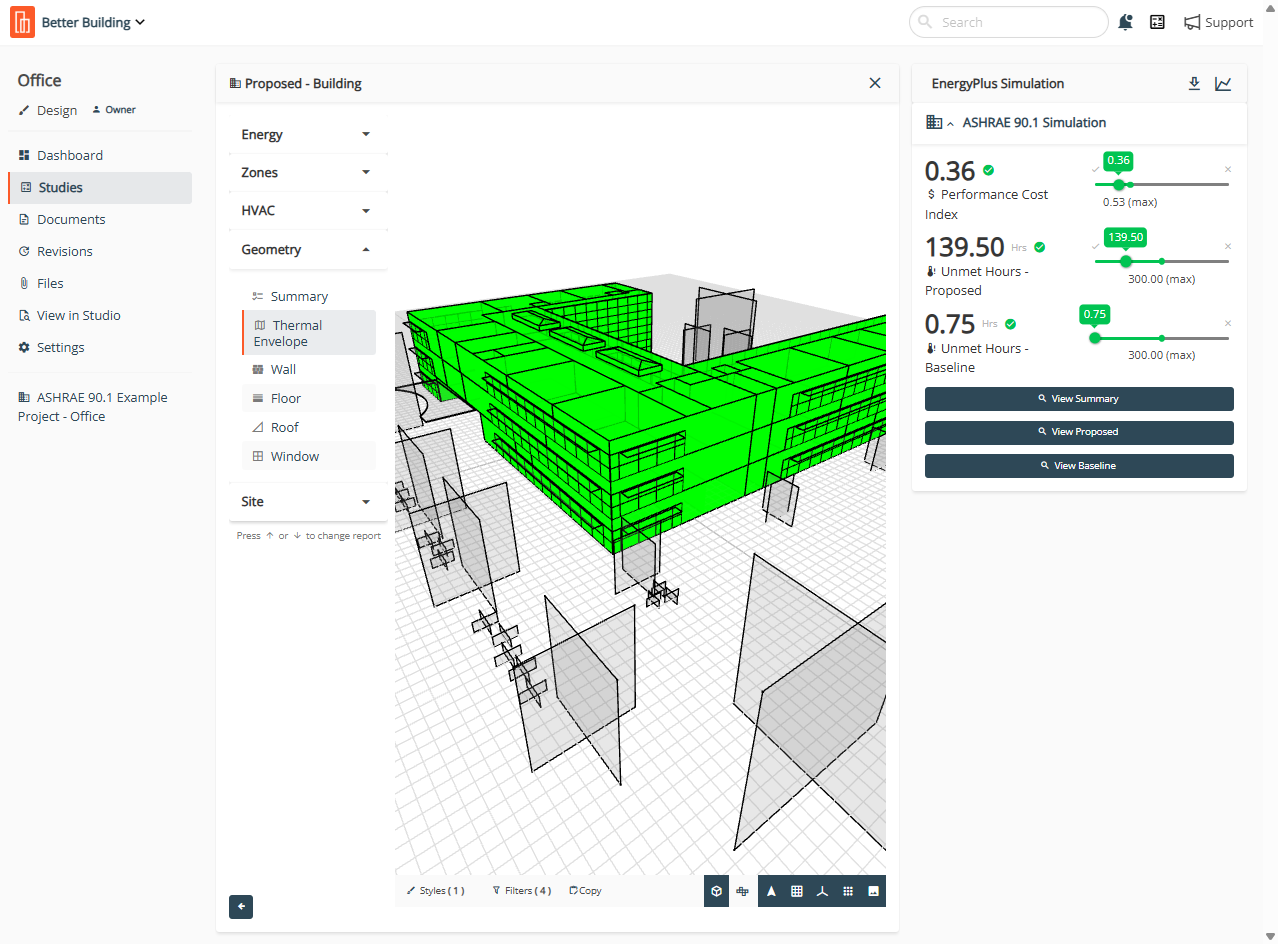
### Geometry
Under Geometry, you get a summary of all geometric assumptions, including thermal performance values and areas for walls, floors, roofs, windows, and general zone information.
**Thermal Envelope** shows a visual depiction of where the thermal envelope is defined in your model. This clarifies exactly what's been treated as conditioned space.
**Walls, Floors, Roofs, and Windows** each have hoverable elements showing R-values, absorptivity, and area. Same interaction pattern across all four, which makes it easier to check whether your assemblies are modeled correctly.
### Site
The Site section displays information from your nominated climate file, which gets selected automatically based on your project's geographic coordinates. You'll see data for Dry Bulb Temperature, Relative Humidity, Direct Solar, Diffuse Solar, Solar Altitude, Wind Speed, Precipitation, and Ground Temperature.
---
# Agent Instructions
This documentation is published with GitBook. GitBook is the documentation platform designed so that both humans and AI agents can read, navigate, and reason over technical content effectively. Learn more at gitbook.com.
## Querying This Documentation
If you need additional information that is not directly available in this page, you can query the documentation by asking a question.
Perform an HTTP GET request on the following URL with the `ask` and `goal` query parameters:
```
GET https://docs.betterbuilding.io/user-guide/workflows/energy-efficiency/ashrae-90.1-2019/ashrae-90.1-appendix-g-2019-outputs.md?ask=&goal=
```
`ask` is the immediate question: it should be specific, self-contained, and written in natural language.
`goal` is what the user is ultimately trying to achieve, the reason they need the answer. Sharing it helps GitBook give you a better, more relevant answer. A goal is most helpful when it describes the outcome the user wants rather than restating the question. For example, with `ask=how do I create an API token`, a goal like `automate deployments from our CI pipeline` lets GitBook tailor the answer to that use case.
The response will contain a direct answer to the question and relevant excerpts and sources from the documentation.
Use this mechanism when the answer is not explicitly present in the current page, you need clarification or additional context, or you want to retrieve related documentation sections.