> For the complete documentation index, see [llms.txt](https://docs.betterbuilding.io/llms.txt). Markdown versions of documentation pages are available by appending `.md` to page URLs; this page is available as [Markdown](https://docs.betterbuilding.io/user-guide/workflows/energy-efficiency/ashrae-90.1-2019/ashrae-90.1-appendix-g-2019-inputs.md).
# ASHRAE 90.1 Appendix G 2019 Inputs
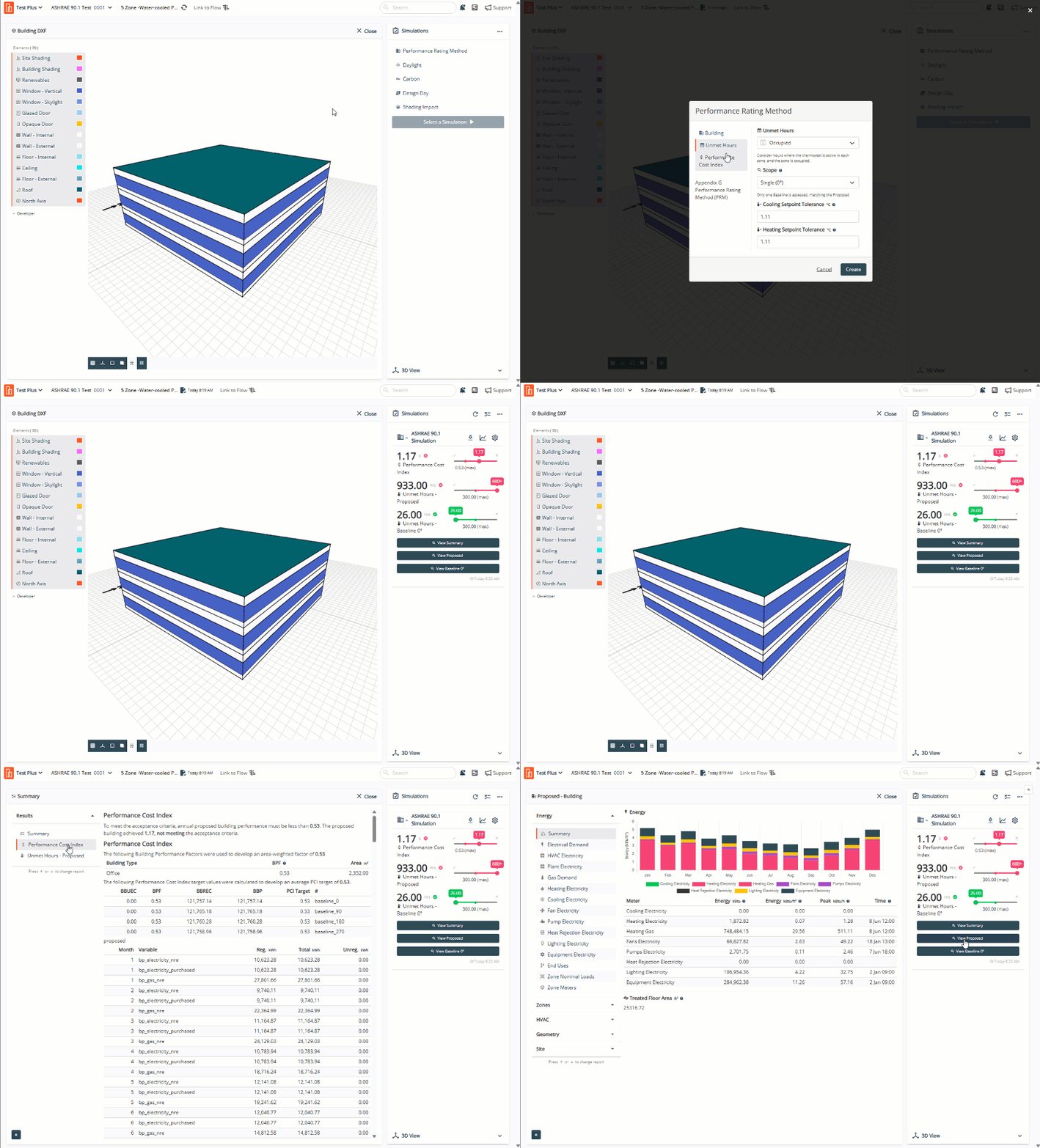
To run an ASHRAE 90.1 Appendix G compliance analysis, navigate to the Performance Rating Method tab in the top right corner and select the cog icon. This opens a configuration panel where you'll enter the required parameters: climate zone, building type, baseline system assignments, and other values specified by the standard. All fields must be completed before the simulation will run, since Appendix G compliance depends on having complete information about your project's characteristics.
The simulation generates both your proposed design model and the baseline model automatically, applying all the prescriptive requirements from Appendix G including envelope properties, lighting power densities, and HVAC configurations. After completion, you'll see results for both buildings with the key compliance metrics already calculated: annual energy cost, cost savings, and percent improvement over baseline. These values can be used directly in your compliance documentation.
Note that the interface specifies ASHRAE 90.1 Appendix G 2019, so verify this matches your project's required standard version since different editions have different baseline requirements.
## Building
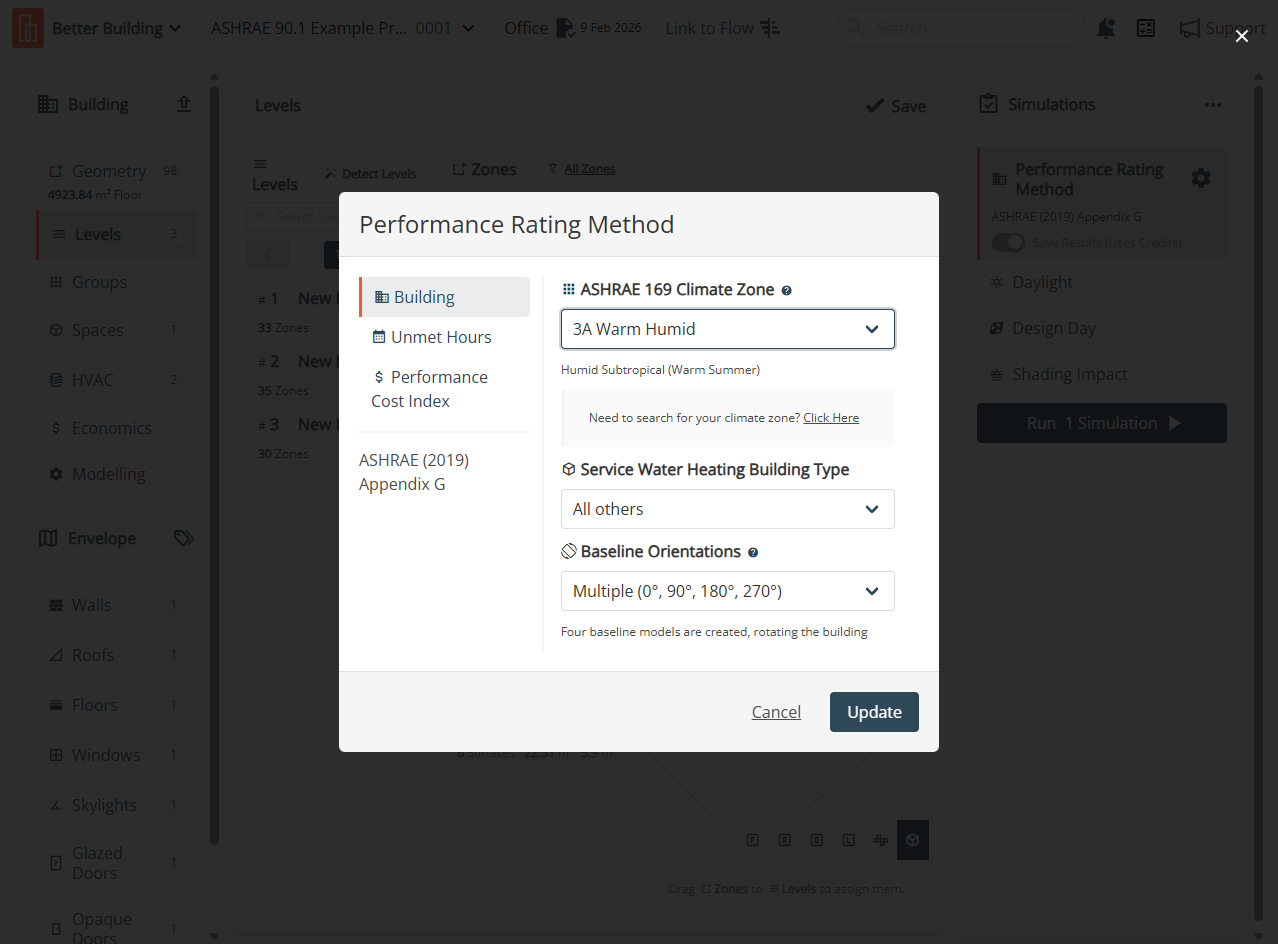
### ASHRAE 169 Climate Zone
Under the Building tab, select your location's climate classification from the ASHRAE 169 Climate Zone dropdown menu that determines baseline HVAC systems and envelope requirements.
### Service Water Heating Building Type
Under the Building tab, select building occupancy type from the Service Water Heating Building Type dropdown menu that determines hot water demand assumptions for baseline.
### Baseline Orientations
Under the Building tab, select Single (0°) from the Unmet Hours dropdown menu to match to the baseline matches proposed orientation only.
Under the Building tab, select Multiple (0°, 90°, 180°, 270°) from the Unmet Hours dropdown menu to run all four rotations averaged (standard for ASHRAE 90.1)
## Unmet Hours
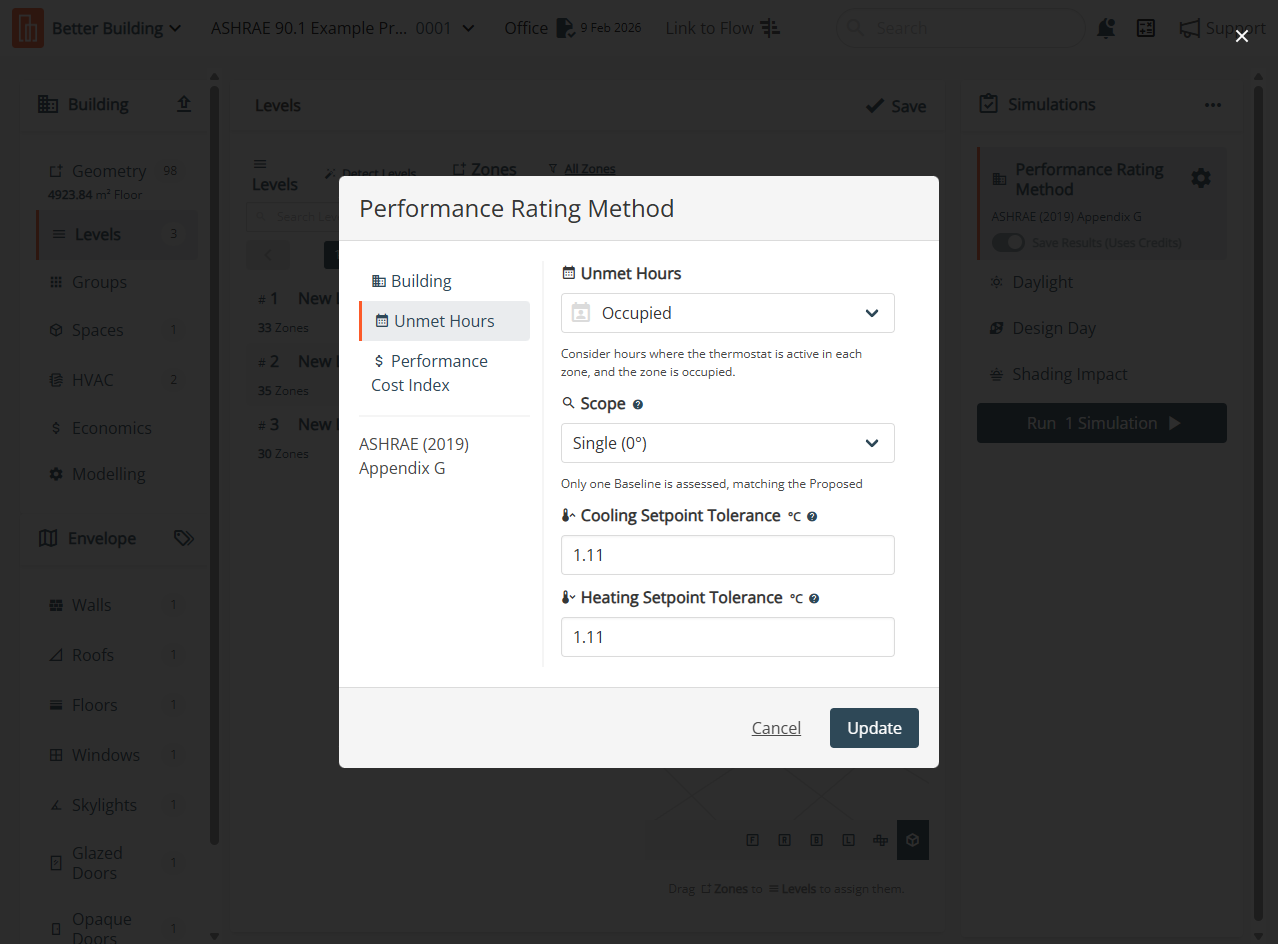
### Unmet Hours
Under the Unmet Hours tab, select Occupied from the Unmet Hours dropdown menu to count unmet hours only during occupied times (standard for ASHRAE 90.1) only.
Under the Unmet Hours tab, select Total from the Unmet Hours dropdown menu to count all 8760 hours/year including unoccupied periods.
### Scope
Under the Unmet Hours tab, select Single (0°) from the Scope dropdown menu to simulate one baseline model at the proposed orientation.
Under the Unmet Hours tab, select Multiple from the Scope dropdown menu to simulate four baseline models averaged at 0°, 90°, 180°, 270° (standard for ASHRAE 90.1).
### Cooling Setpoint Tolerance
Under the Unmet Hours tab, select temperature from the Cooling Setpoint Tolerance dropdown menu to set the cooling setpoint before counting as unmet (°C). (standard for ASHRAE 90.1 = 1.11°C (2°F)).
### Heating Setpoint Tolerance
Under the Unmet Hours tab, select temperature from the Heating Setpoint Tolerance dropdown menu to set the heating setpoint before counting as unmet (°C). (standard for ASHRAE 90.1 = 1.11°C (2°F)).
## Performance Cost Index
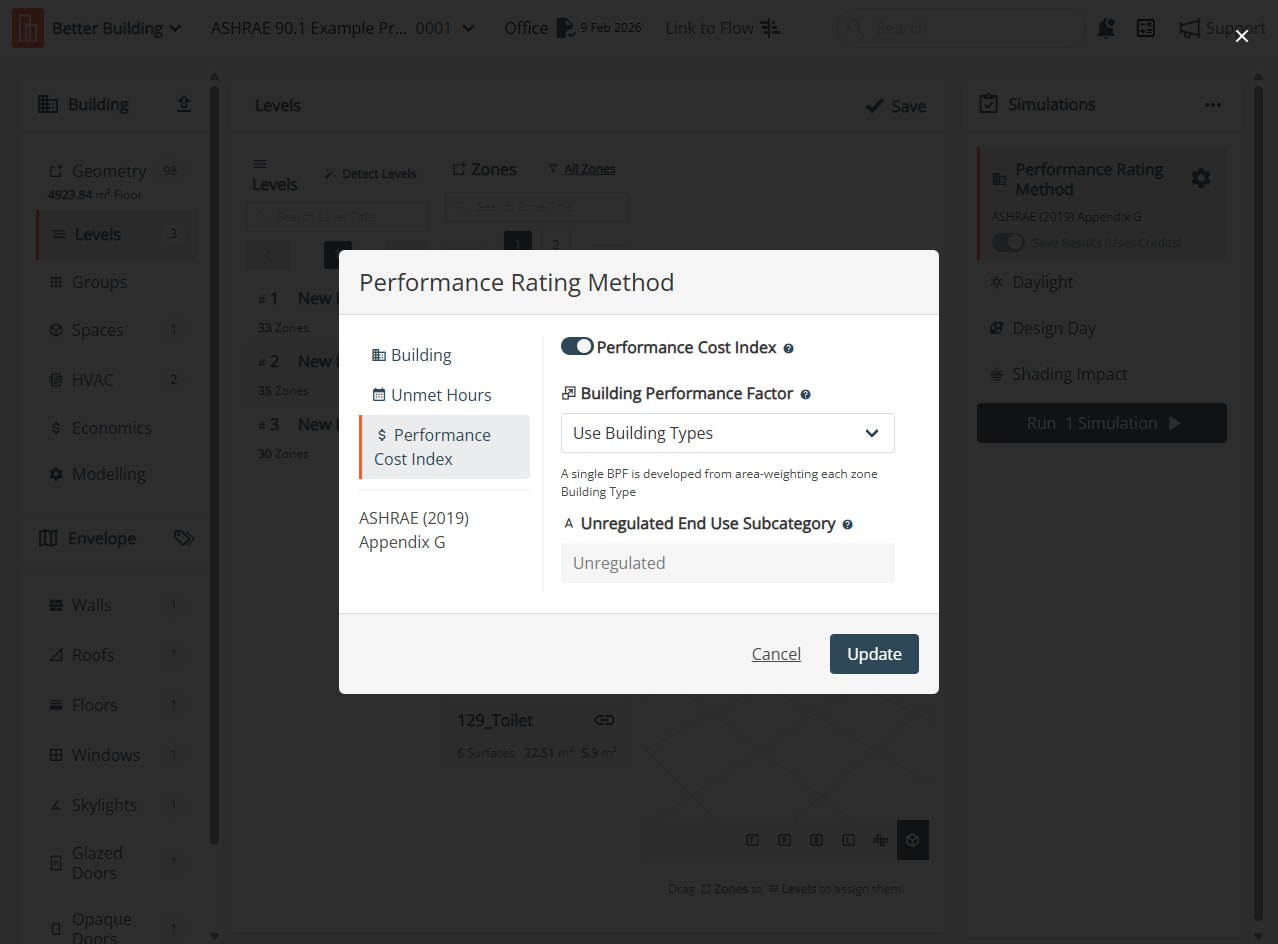
### Performance Cost Index
Under the Performance Rating Method tab, enabled Performance Rating Method toggle to produce Performance Cost Index results.
### Building Performance Factor
Under the Performance Rating Method tab, choose whether the BPF is based on supplied Building Type options, or provide a custom value.
### Unregulated End Use
Equipment not covered by energy code (servers, medical equipment, etc.)
---
# Agent Instructions
This documentation is published with GitBook. GitBook is the documentation platform designed so that both humans and AI agents can read, navigate, and reason over technical content effectively. Learn more at gitbook.com.
## Querying This Documentation
If you need additional information that is not directly available in this page, you can query the documentation by asking a question.
Perform an HTTP GET request on the following URL with the `ask` and `goal` query parameters:
```
GET https://docs.betterbuilding.io/user-guide/workflows/energy-efficiency/ashrae-90.1-2019/ashrae-90.1-appendix-g-2019-inputs.md?ask=&goal=
```
`ask` is the immediate question: it should be specific, self-contained, and written in natural language.
`goal` is what the user is ultimately trying to achieve, the reason they need the answer. Sharing it helps GitBook give you a better, more relevant answer. A goal is most helpful when it describes the outcome the user wants rather than restating the question. For example, with `ask=how do I create an API token`, a goal like `automate deployments from our CI pipeline` lets GitBook tailor the answer to that use case.
The response will contain a direct answer to the question and relevant excerpts and sources from the documentation.
Use this mechanism when the answer is not explicitly present in the current page, you need clarification or additional context, or you want to retrieve related documentation sections.