> For the complete documentation index, see [llms.txt](https://docs.betterbuilding.io/llms.txt). Markdown versions of documentation pages are available by appending `.md` to page URLs; this page is available as [Markdown](https://docs.betterbuilding.io/user-guide/tools-and-plugins/schedule-editor.md).
# Schedule Editor
Beta Version 1.0 I 30/12/2025
### What is this tool?
The Schedule Editor V 1.0 is a comprehensive web-based tool designed for creating, editing, and managing annual hourly schedules for energy simulation workflows. It enables energy modelers, engineers, and building performance analysts to create detailed occupancy, equipment, and lighting schedules with intuitive visual controls and a powerful annual heatmap interface. The tool streamlines the schedule creation process by providing 41 pre-built profile templates, visual editing capabilities, and direct EnergyPlus IDF export functionality.
{% hint style="success" %}
**Download the tool here:** [Schedule Editor V 1.0](https://files.betterbuilding.io/docs/schedule_editor_v_1_0.html)
{% endhint %}
***
### Key Features
* **Annual Heatmap Calendar**: Visual 365-day × 7-day-of-week grid showing schedule assignments across the entire year
* **41 Pre-built Profiles**: Comprehensive library covering office, retail, hotel, restaurant, school, healthcare, residential, and industrial building types
* **Dual View Modes**: Grid thumbnails and detailed card view for profile library
* **Visual Profile Editor**: Interactive 24-hour graph with drag-and-drop node editing
* **Quick Assignment Tools**: ASSIGN dropdown for rapid bulk scheduling (weekdays, weekends, all days, selection)
* **Quick Select Ranges**: Pre-configured date ranges (months, quarters, weekdays, weekends)
* **Profile Type Classification**: Organize profiles by type (Weekdays, Weekends, Holidays, Design Days, etc.)
* **Multiple Input Methods**: Visual editor, table editor, CSV import
* **Real-Time Preview**: See schedule changes instantly in the heatmap
* **IDF Export**: Direct export to EnergyPlus Schedule format
* **JSON Import/Export**: Save and load complete schedule configurations
* **Undo/Redo System**: Full history support for all operations
* **Step Mode**: Toggle between smooth curves and step-wise schedules
* **Color Coding**: Customizable colors for easy profile identification
***
### System Requirements
| Requirement | Specification |
| --------------------- | ------------------------------------------------ |
| **Browser** | Chromium-based (Chrome, Edge, Brave) or Firefox |
| **JavaScript** | Enabled (required for application functionality) |
| **RAM** | 2GB minimum, 4GB recommended |
| **Screen Resolution** | 1280×720 minimum, 1920×1080 recommended |
| **Network** | Not required (runs offline once loaded) |
***
### Access (Free)
The tool is provided as a single HTML file that can be:
* Hosted on any web server
* Run locally by opening in a browser
* Embedded in existing workflows
* Distributed to team members
**Download the tool here:** Schedule Editor V 1.0
***
### Version History
| Version | Comment |
| --------- | ---------------------------------------------------------------------------------------------------------------------------------------------- |
| **V 1.0** | Full library with 41 profiles, dual view modes, ASSIGN dropdown, Quick Select integration, improved sidebar layout, visual editor enhancements |
***
### Quick Start Guide
#### Basic Workflow (5 Steps)
**Step 1: Understand the Interface**
When you open the tool:
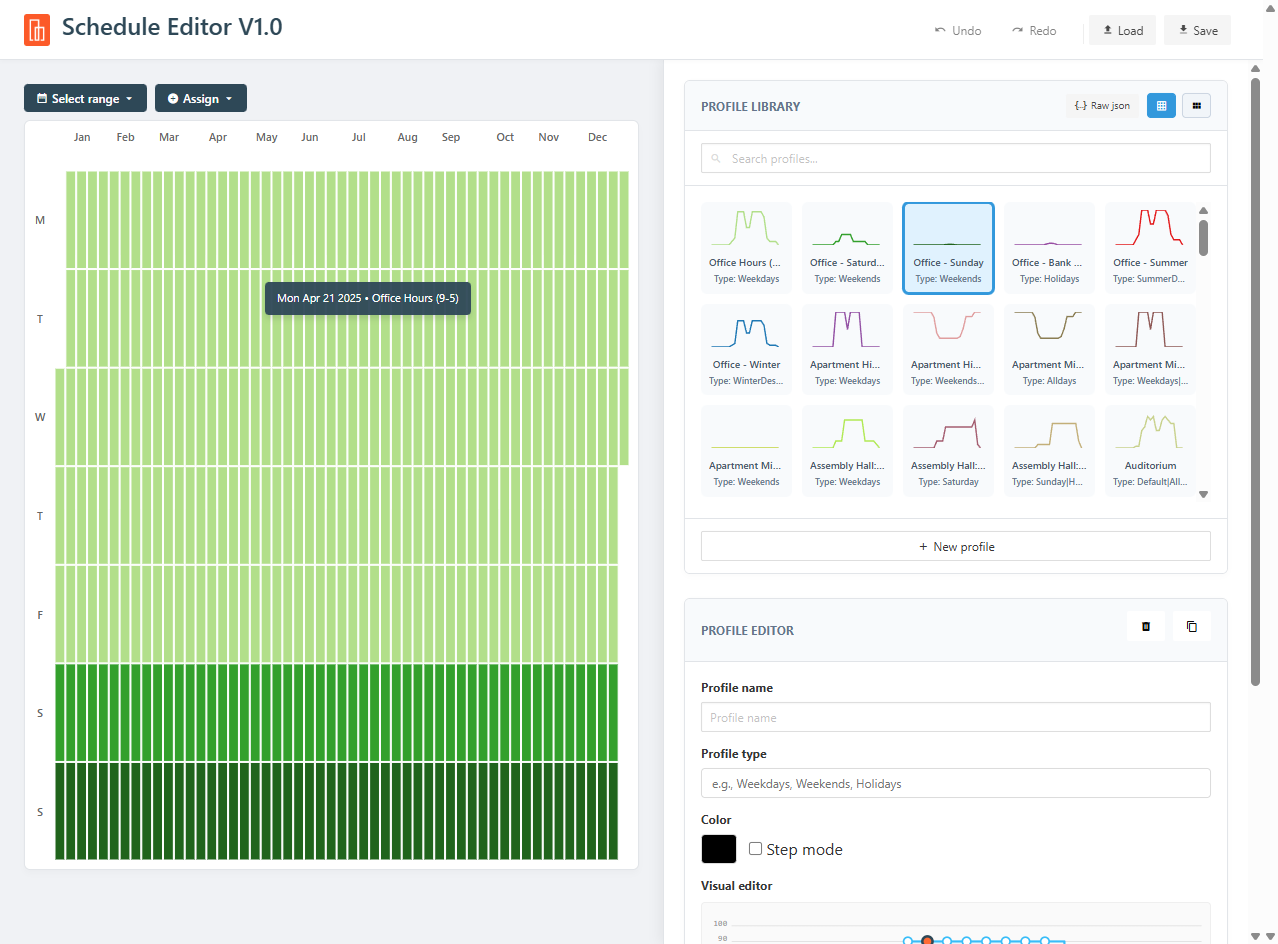
* **Left Side**: Annual heatmap showing 365 days (columns) × 7 days of week (rows)
* **Right Sidebar** (760px wide): Three panels:
* **Quick Select**: Pre-configured date ranges
* **Profile Library**: 41 pre-built schedule profiles
* **Profile Editor**: Edit selected profile
**Step 2: Select a Date Range**
1. In the **Quick Select** panel, click "Select Range..."
2. Choose from options:
* **Months**: January, February, March, etc.
* **Quarters**: Q1, Q2, Q3, Q4
* **Day Types**: All Weekdays, All Weekends
The selected days will be highlighted in the heatmap.
**Step 3: Assign a Profile**
**Method A - Double-Click Assignment**:
1. Select a date range (Step 2)
2. Find desired profile in Profile Library
3. **Double-click the profile** to assign it to selected days
**Method B - ASSIGN Dropdown**:
1. Click a profile in the library to make it active
2. Click the green **ASSIGN** button above the heatmap
3. Choose:
* Assign to Weekdays
* Assign to Weekends
* Assign to All Days
* Assign to Selection
**Method C - Paint Mode**:
1. Click a profile to make it active
2. Click individual days on the heatmap to "paint" the profile
**Step 4: Customize Profiles**
1. Click a profile in the library to select it
2. In **Profile Editor** panel:
* Modify **Profile Name**
* Set **Profile Type** (e.g., "Weekdays", "Holidays")
* Change **Color** for visual identification
* Use **Visual Editor**:
* Drag nodes up/down to change hourly values
* Use **Node Value** input for precise values
* Click **+1, +10, -1, -10** buttons for fine adjustments
* Or use **Edit Table** for direct hour-by-hour input
* Or use **Edit CSV** to paste values
**Step 5: Export Your Schedule**
1. Click **IDF Export** button in the header
2. File downloads as `schedule.idf`
3. Import into EnergyPlus or OpenStudio
**Result**: Complete annual schedule ready for energy simulation
***
### Features & Functions
#### Annual Heatmap
The heatmap is the core visualization showing your entire year at a glance.
**Layout**
* **Columns**: 53 weeks across the year
* **Rows**: 7 days of the week (Monday at top, Sunday at bottom)
* **Cells**: Each cell represents one day
* **Colors**: Match the assigned profile's color
**Month Labels**
Months are displayed across the top:
* Jan, Feb, Mar, Apr, May, Jun, Jul, Aug, Sep, Oct, Nov, Dec
**Day Labels**
Days of the week on the left:
* M (Monday)
* T (Tuesday)
* W (Wednesday)
* T (Thursday)
* F (Friday)
* S (Saturday)
* S (Sunday)
**Interaction**
| Action | Result |
| ---------------------- | -------------------------------------------- |
| **Click a cell** | Assigns currently active profile to that day |
| **Shift+Click a cell** | Toggles day in/out of selection |
| **Hover over cell** | Shows tooltip with date and assigned profile |
**Filter Selection**
Day-of-week toggles above the heatmap:
* Click M, T, W, T, F, S, S buttons to filter which days are affected by operations
* Active (dark) = included in operations
* Inactive (light) = excluded from operations
***
#### Quick Select Panel
Pre-configured date ranges for rapid selection.
**Available Ranges**
**Months**:
* January through December (individual months)
**Quarters**:
* Q1 (Jan-Mar)
* Q2 (Apr-Jun)
* Q3 (Jul-Sep)
* Q4 (Oct-Dec)
**Day Types**:
* All Weekdays (Monday-Friday for entire year)
* All Weekends (Saturday-Sunday for entire year)
**Usage**
1. Click **"Select Range..."** dropdown
2. Choose desired range
3. Selected days highlight in heatmap (orange border)
4. Use ASSIGN button or double-click profiles to apply
***
#### Profile Library Panel
**View Modes**
Toggle between two display modes using icons in panel header:
**Grid View** (default):
* Compact thumbnail grid
* 24-hour mini-graph preview
* Profile name below
* Profile type label
* Hover shows calendar icon (double-click hint)
**Card View**:
* 4-column layout (takes advantage of 760px width)
* Larger preview graphs
* Profile name, type, and edit icon
* Click edit icon (pencil) to open table editor
**Profile Organization**
Profiles are organized by building type:
**Office Buildings** (6 profiles):
* Office Hours (9-5) - Weekdays
* Office - Saturday
* Office - Sunday
* Office - Bank Holiday
* Office - Summer (Design Day)
* Office - Winter (Design Day)
**Hotels** (8 profiles):
* Large Hotel Lobby - Sat/Sun
* Hotel Corridor - All Days
* Hotel Kitchen - Mon-Fri & Sat/Sun
* Hotel Lounge - All
* Hotel Large Bldg - Mon-Fri, Sat, Sun/Hol
**Retail** (4 profiles):
* Retail Sales - Mon-Fri, Saturday, Sunday, Bank Holiday
**Restaurants** (2 profiles):
* Restaurant - Lunch Peak
* Fast Food - All Days
**Schools/Universities** (4 profiles):
* School - Weekdays
* University Office - Mon-Fri, Sat, Sun
**Fitness** (2 profiles):
* Gym/Fitness - Weekdays & Weekends
**Industrial** (2 profiles):
* Warehouse - Day Shift
* Manufacturing - 24/7
**Healthcare** (2 profiles):
* Hospital - 24/7
* Medical Office - Weekdays
**Tech/Data Centers** (2 profiles):
* Data Center - Constant
* Server Room - All
**Residential** (3 profiles):
* Residential - Morning/Evening
* Apartment Midrise - Mon-Fri & Sat/Sun
**Entertainment/Cultural** (3 profiles):
* Theater - Evening Shows
* Library - Public Hours
* Museum - All Days
**Large Office Buildings** (3 profiles):
* Large Office Bldg - Weekdays, Sat, Sun
**Profile Interaction**
| Action | Result |
| ---------------- | ---------------------------------------------------- |
| **Single Click** | Selects profile as active (shown in Profile Editor) |
| **Double Click** | Assigns profile to current Quick Select selection |
| **Hover** | Shows calendar icon hint for double-click assignment |
**New Profile**
Click **+ New Profile** button at bottom of library:
* Creates blank profile (all hours at 50%)
* Automatically assigned next available ID
* Ready for customization
***
#### Profile Editor Panel
Edit the currently selected profile with multiple methods.
**Profile Properties**
**Profile Name**:
* Text input field
* Appears in library and exports
* Best practice: Descriptive names (e.g., "Retail Summer Hours")
**Profile Type**:
* Classification field
* Examples: "Weekdays", "Weekends", "Holidays", "SummerDesignDay"
* Appears below profile name in library
* Helps organize large profile collections
**Color**:
* Click color box to open picker
* Updates library thumbnail and heatmap
* Choose distinct colors for easy visual identification
**Visual Editor**
Interactive 24-hour graph with real-time editing.
**Graph Features**:
* **X-Axis**: 24 hours (00-24)
* **Y-Axis**: Percentage (0-100%)
* **Grid Lines**: Every 10% for reference
* **Curve/Fill**: Shows profile shape
* **Nodes**: 24 editable points (one per hour)
**Editing**:
1. Click on a node to select it (turns orange, larger)
2. Drag node up/down to change value
3. Or use **Node Value** input field for precise entry
4. Use increment buttons:
* **+10**: Increase by 10%
* **+1**: Increase by 1%
* **-1**: Decrease by 1%
* **-10**: Decrease by 10%
**Step Mode Checkbox**:
* Unchecked (default): Smooth interpolated curve
* Checked: Step-wise transitions between hours
* Useful for schedules with abrupt changes
**Edit Table Button**
Opens modal with 24 hour-by-hour input fields:
| Hour | Value |
| ----- | -------- |
| 0:00 | \[input] |
| 1:00 | \[input] |
| ... | ... |
| 23:00 | \[input] |
* Direct numeric input (0-100)
* Good for precise scheduling
* Click "Save" to apply changes
**Edit CSV Button**
Opens modal with text area for comma-separated values:
**Input Formats**:
* 24 values separated by commas: `0, 0, 0, 10, 50, 100, ...`
* Decimal (0.0-1.0) auto-converted to percentage: `0.0, 0.5, 1.0`
* Whitespace tolerant: Spaces, tabs, newlines ignored
**Use Cases**:
* Paste from spreadsheet
* Import from existing schedule tools
* Bulk editing
**Delete & Duplicate Buttons**
**Delete** (trash icon):
* Removes profile from library
* Cannot delete if it's the last profile
* Confirms before deletion
**Duplicate** (copy icon):
* Creates copy with " (Copy)" suffix
* New profile becomes active
* Useful for creating variations
***
#### ASSIGN Dropdown
Located above the heatmap (green button with dropdown).
**Options**
**Assign to Weekdays**:
* Applies active profile to all Monday-Friday across entire year
* Quick setup for typical office schedules
**Assign to Weekends**:
* Applies active profile to all Saturday-Sunday across entire year
* Different weekend schedules
**Assign to All Days**:
* Applies active profile to entire year (365 days)
* Good for 24/7 operations
**Assign to Selection**:
* Applies active profile to days selected via Quick Select
* Most flexible option
**Workflow Example**
1. Select "Office Hours (9-5)" profile in library
2. Click ASSIGN dropdown
3. Choose "Assign to Weekdays"
4. Select "Office - Sunday" profile
5. Click ASSIGN → "Assign to Weekends"
6. Result: Complete work week scheduled in seconds
***
#### Header Toolbar
Located at top of application.
**Left Side - Branding**
* **Better Building Logo**: Company branding
* **Schedule Editor V13**: Tool name
* **Raw Data Access • Full Library**: Feature indicators
**Right Side - Actions**
**Undo/Redo**:
* Undo button: Reverts last change
* Redo button: Reapplies undone change
* Tracks all profile edits and schedule assignments
* Maximum 50 history states
**Load**:
* Opens file picker for JSON files
* Loads saved schedule configurations
* Replaces current project
**Save**:
* Downloads current project as JSON
* Filename: `schedule_data.json`
* Contains all profiles and schedule assignments
**IDF Export**:
* Downloads EnergyPlus IDF format
* Filename: `schedule.idf`
* Contains:
* `ScheduleTypeLimits` (Fraction, 0-1, Continuous)
* `Schedule:Day:Interval` (one per profile)
* `Schedule:Week:Daily` (one per profile)
* `Schedule:Year` (main annual schedule)
***
### Detailed Features
#### Day-of-Week Filtering
The M-T-W-T-F-S-S buttons above the heatmap act as filters.
**Function**
When toggled OFF (light gray):
* Days of that type are excluded from:
* ASSIGN operations
* Quick Select ranges
* Bulk operations
When toggled ON (dark, active):
* Days of that type are included
**Example Use Case**
To assign different schedules for weekdays vs weekends:
1. Turn OFF S and S (weekend buttons)
2. Select weekday profile
3. Use ASSIGN → Assign to Weekdays
4. Turn OFF M-T-W-T-F, turn ON S-S
5. Select weekend profile
6. Use ASSIGN → Assign to Weekends
***
#### Profile Type System
Profile types help organize and identify schedule categories.
**Common Types**
| Type | Usage |
| ---------------------- | ------------------------- |
| **Weekdays** | Monday-Friday operations |
| **Saturday** | Weekend day 1 |
| **Sunday** | Weekend day 2 |
| **Weekends** | Both Saturday and Sunday |
| **Holidays** | Bank holidays, closures |
| **AllDays** | 24/7 operations |
| **SummerDesignDay** | ASHRAE peak cooling day |
| **WinterDesignDay** | ASHRAE peak heating day |
| **Weekends\&Holidays** | Combined non-working days |
**Custom Types**
You can create your own:
* "Spring Hours"
* "Festival Days"
* "Maintenance Schedule"
* Any descriptive label
***
#### Selection System
Multiple ways to select days for batch operations.
**Selection Methods**
**Quick Select Dropdown**:
* Pre-configured ranges
* Fast, consistent selections
**Shift+Click on Heatmap**:
* Click while holding Shift
* Toggles individual days in/out of selection
* Manual fine-tuning
**Visual Indicators**:
* Selected days: Orange border on heatmap cells
* Selection persists until cleared or new Quick Select
**Clearing Selection**
* Choose a new Quick Select range (replaces selection)
* Shift+Click all selected days (toggles off)
***
#### Raw JSON Editor
Access via button in Profile Library panel header.
**Purpose**
* Advanced editing of entire data structure
* Bulk modifications
* Debugging
* Backup/restore
**Structure**
```json
{
"profiles": [
{
"id": 1,
"name": "Office Hours (9-5)",
"color": "#4ade80",
"type": "Weekdays",
"values": [0,0,0,0,0,0,0,10,20,100, ... ]
}
],
"schedule": [1, 1, 1, 1, 1, 2, 3, ... ], // 365 values
"settings": {
"dayFilters": [true, true, true, true, true, true, true],
"stepMode": false
}
}
```
**profiles**: Array of profile objects
* `id`: Unique number
* `name`: Profile name
* `color`: Hex color code
* `type`: Classification string
* `values`: Array of 25 numbers (0-100), hour 0-24
**schedule**: Array of 365 numbers
* Each number is a profile ID
* Index 0 = January 1, Index 364 = December 31
**settings**: Application preferences
**Usage**
1. Click "Raw JSON" button
2. Edit JSON in text area
3. Click "Save" to apply
4. Invalid JSON shows error alert
***
### Export Specifications
#### IDF Format Structure
The exported `.idf` file contains EnergyPlus objects:
**ScheduleTypeLimits**
```
ScheduleTypeLimits,
Fraction,
0.0,
1.0,
Continuous;
```
Defines value range (0-1) for all schedules.
**Schedule:Day:Interval**
One for each profile:
```
Schedule:Day:Interval,
Office Hours (9-5)_Day,
Fraction,
No,
01:00,
0.00,
02:00,
0.00,
...
09:00,
1.00,
17:00,
1.00,
18:00,
0.10,
...
24:00,
0.00;
```
24 time/value pairs (values divided by 100 to get 0-1 range).
**Schedule:Week:Daily**
One for each profile:
```
Schedule:Week:Daily,
Office Hours (9-5)_Week,
Office Hours (9-5)_Day,
Office Hours (9-5)_Day,
Office Hours (9-5)_Day,
Office Hours (9-5)_Day,
Office Hours (9-5)_Day,
Office Hours (9-5)_Day,
Office Hours (9-5)_Day,
Office Hours (9-5)_Day,
Office Hours (9-5)_Day,
Office Hours (9-5)_Day,
Office Hours (9-5)_Day,
Office Hours (9-5)_Day;
```
References same day schedule for all days (week schedules are used as building blocks).
**Schedule:Year**
Main annual schedule:
```
Schedule:Year,
Main_Schedule,
Fraction,
Office Hours (9-5)_Week,
1, 1,
1, 5,
Office - Saturday_Week,
1, 6,
1, 6,
Office - Sunday_Week,
1, 7,
1, 7,
...
```
Lists date ranges with assigned week schedules. The tool automatically consolidates consecutive days with same profile into single ranges.
#### JSON Format Structure
Saved projects are stored as JSON:
```json
{
"profiles": [ ... ],
"schedule": [ ... ],
"settings": { ... }
}
```
**File Extension**: `.json`
**Use Cases**:
* Project backup
* Version control
* Sharing with team
* Template creation
***
### Workflow Examples
#### Example 1: Standard Office Building
**Goal**: Create typical office schedule with weekend variations
**Steps** (2 minutes):
1. **Weekday Hours**:
* Select "Office Hours (9-5)" profile
* Click ASSIGN → "Assign to Weekdays"
2. **Saturday Reduced Hours**:
* Select "Office - Saturday" profile
* Click ASSIGN, choose "Assign to Weekends"
* Modify: Click Quick Select → "All Weekends"
* Shift+Click Sundays to deselect them
* Double-click "Office - Saturday" profile
3. **Sunday Closed**:
* Select "Office - Sunday" (0% all day)
* Click Quick Select → "All Weekends"
* Shift+Click Saturdays to deselect
* Double-click "Office - Sunday" profile
4. **Export**:
* Click "IDF Export"
* Import into EnergyPlus
**Result**: 365-day schedule with 5-day operation and reduced weekend hours
***
#### Example 2: Retail Store with Seasonal Hours
**Goal**: Different schedules for summer and winter seasons
**Steps** (4 minutes):
1. **Create Summer Profile**:
* Click "New Profile"
* Name: "Retail Summer Extended"
* Edit hours: 8am-10pm (high values)
* Set type: "Summer"
* Color: Orange
2. **Create Winter Profile**:
* Duplicate "Retail Summer Extended"
* Rename: "Retail Winter Standard"
* Edit hours: 9am-8pm
* Set type: "Winter"
* Color: Blue
3. **Assign Summer** (June-August):
* Select "Retail Summer Extended"
* Quick Select → June
* Double-click profile
* Repeat for July, August
4. **Assign Winter** (November-February):
* Select "Retail Winter Standard"
* Quick Select → November
* Double-click profile
* Repeat for December, January, February
5. **Fill Remaining**:
* Create/use "Retail Standard" profile
* ASSIGN → "Assign to All Days" (fills gaps)
**Result**: Seasonal schedule reflecting extended summer hours
***
#### Example 3: Hotel with Multiple Schedule Types
**Goal**: Complex hotel with varied occupancy patterns
**Steps** (5 minutes):
1. **Lobby Areas**:
* Select "Large Hotel Lobby - Sat/Sun"
* ASSIGN → "Assign to All Days"
2. **Kitchen Operations**:
* Select "Hotel Kitchen - Mon-Fri"
* ASSIGN → "Assign to Weekdays"
* Select "Hotel Kitchen - Sat/Sun"
* ASSIGN → "Assign to Weekends"
3. **Corridors (24/7)**:
* Select "Hotel Corridor - All"
* For specific zones only (manual painting):
* Click days individually on heatmap
4. **Holidays**:
* Create custom "Hotel - Holiday Peak" profile
* Increase values for busy seasons
* Quick Select → December 20-31
* Shift+click to select range
* Double-click profile
**Result**: Multi-zone hotel schedule with appropriate patterns
***
#### Example 4: University Campus
**Goal**: Academic calendar with breaks
**Steps** (6 minutes):
1. **Academic Year Base**:
* Select "University Office - Mon-Fri"
* ASSIGN → "Assign to Weekdays"
2. **Weekend Maintenance**:
* Select "University Office - Sat"
* ASSIGN → "Assign to Weekends"
3. **Winter Break** (Dec 20 - Jan 10):
* Select "Office - Bank Holiday" (minimal operation)
* Quick Select → December
* Shift+click individual days 20-31
* Double-click profile
* Quick Select → January
* Shift+click days 1-10
* Double-click profile
4. **Spring Break** (March 15-22):
* Similar process with reduced profile
5. **Summer Session** (June-August):
* Create "University Summer Session" profile
* Reduced hours (9am-5pm vs 8am-10pm)
* Assign to June-August
**Result**: Academic schedule reflecting calendar year
***
### Best Practices
#### Schedule Design Guidelines
**Start with Templates**:
* Use pre-built profiles as starting points
* Modify to match specific needs
* Maintain consistent patterns
**Naming Conventions**:
* Include building type: "Office...", "Retail..."
* Include day type: "...Mon-Fri", "...Weekend"
* Include season/variant: "...Summer", "...Peak"
* Example: "Office Weekday Summer Extended"
**Profile Organization**:
* Set Profile Type for all schedules
* Use consistent color coding:
* Green: Weekday profiles
* Blue: Weekend profiles
* Purple: Holidays
* Orange: Design days
* Red: 24/7 operations
**Value Ranges**:
* Occupancy: 0-100% of design occupancy
* Equipment: 0-100% of installed capacity
* Lighting: 0-100% of installed capacity
* Keep minimum values > 0 for equipment parasitic loads
#### Workflow Optimization
**Large Projects** (10+ unique schedules):
1. Create all profiles first
2. Test export with single profile
3. Use day filters extensively
4. Work month-by-month or quarter-by-quarter
5. Save project regularly
**Team Collaboration**:
* Establish naming standards
* Share JSON project files
* Document custom profiles
* Use color coding consistently
**Quality Assurance**:
* Visual inspection of heatmap (look for unintended gaps)
* Check week transitions (Sunday to Monday)
* Verify holiday assignments
* Export and validate in EnergyPlus
* Compare to actual building data
#### Energy Modeling Preparation
**Occupancy Schedules**:
* Base on actual building data
* Account for lunch hours (reduced values)
* Include ramp-up/ramp-down periods
* Differentiate perimeter/core if needed
**Equipment Schedules**:
* Never drop to absolute zero (parasitic loads)
* Correlate with occupancy patterns
* Account for scheduled equipment runs
* Include weekend/overnight HVAC systems
**Lighting Schedules**:
* Consider daylighting sensors (reduced daytime values)
* Include cleaning hours
* Security lighting (minimum overnight value)
* Task lighting vs ambient lighting
**HVAC Availability**:
* Precede occupancy by 1-2 hours
* Extend past occupancy for flush-out
* Include setback periods
* Differentiate supply vs exhaust
***
### Troubleshooting
#### Common Issues
**Issue: Profile Changes Not Visible in Heatmap**
**Symptoms**: Edit profile but heatmap colors don't update
**Solutions**:
* Click different profile then click back
* Toggle view mode (Grid ↔ Card)
* Refresh browser (F5)
* Check if profile is actually assigned to days
***
**Issue: Cannot Select Date Range**
**Symptoms**: Quick Select dropdown doesn't work
**Solutions**:
* Ensure dropdown is visible (not clipped)
* Check panel scroll position
* Click "Select Range..." button again
* Clear browser cache
***
**Issue: Double-Click Doesn't Assign**
**Symptoms**: Double-clicking profile has no effect
**Solutions**:
* Ensure days are selected first (via Quick Select)
* Check selection highlighted in heatmap (orange border)
* Try single-click then use ASSIGN dropdown
* Disable browser zoom (Ctrl+0 to reset)
***
**Issue: Export File Empty or Invalid**
**Symptoms**: Downloaded IDF file has errors or no content
**Solutions**:
* Verify at least one profile exists
* Check browser download permissions
* Open IDF in text editor to verify content
* Try Save (JSON) first to verify data integrity
* Check browser console (F12) for errors
***
**Issue: Visual Editor Graph Distorted**
**Symptoms**: Graph aspect ratio wrong or clipped
**Solutions**:
* Scroll sidebar to ensure full graph visible
* Check browser zoom level (should be 100%)
* Resize browser window
* Toggle sidebar width
* Check for browser extensions interfering
***
**Issue: Cannot Edit Node Values**
**Symptoms**: Clicking/dragging nodes doesn't work
**Solutions**:
* Ensure profile is selected (highlighted in library)
* Click directly on node circle
* Try using Node Value input field instead
* Use Edit Table as alternative
* Check mouse/trackpad functionality
***
**Issue: Heatmap Cells Offset Wrong**
**Symptoms**: January doesn't start on correct day
**Solutions**:
* This is resolved in current version
* If persists, refresh browser
* Clear browser cache
* Re-download latest tool version
***
**Issue: Undo/Redo Not Working**
**Symptoms**: Buttons disabled or don't reverse changes
**Solutions**:
* Check if at history limit (50 states)
* Only some operations are tracked:
* Profile edits: Yes
* Schedule assignments: Yes
* View changes: No
* Refresh browser to reset history
***
#### Browser-Specific Issues
**Chrome/Edge**:
* Enable hardware acceleration
* Disable extensions that modify pages
* Clear cache and cookies
* Update to latest version
**Firefox**:
* Enable JavaScript
* Check pop-up blocker settings
* Update to latest version
* Test in private window
**Safari**:
* Enable JavaScript in preferences
* Allow downloads
* May have zoom behavior differences
* Consider using Chrome/Edge instead
***
### Keyboard Shortcuts
| Shortcut | Action |
| ---------- | ---------------------------------------- |
| **Ctrl+Z** | Undo last change |
| **Ctrl+Y** | Redo last undone change |
| **Delete** | Delete selected profile |
| **Escape** | Close modal dialogs |
| **F5** | Refresh browser (reload project) |
| **Ctrl+S** | (Browser default - may not save project) |
**Note**: Most operations are mouse/click-driven for accessibility.
***
### Settings & Preferences
#### Application State
Stored in browser memory:
**Profiles**:
* All profile definitions
* Names, colors, types, values
**Schedule**:
* 365-day assignments
* Profile ID per day
**Settings**:
* Day filters (M-T-W-T-F-S-S)
* Step mode toggle
* View mode (Grid/Card)
**History**:
* Undo/redo stack (up to 50 states)
#### Data Persistence
**Session Storage**:
* Lost when:
* Closing browser tab
* Switching to different page
* Clearing browser data
**Recommendation**:
* Save JSON frequently
* Export IDF at milestones
* Don't rely on browser storage for long-term
***
### Data Structure Reference
#### Profile Object
```json
{
"id": 1,
"name": "Office Hours (9-5)",
"color": "#4ade80",
"type": "Weekdays",
"values": [
0, 0, 0, 0, 0, 0, 0,
10, 20, 100, 100, 100,
50, 50, 100, 100, 100,
100, 10, 20, 20, 20,
20, 0, 0
]
}
```
**Fields**:
* `id`: Unique integer identifier
* `name`: String (displayed in library)
* `color`: Hex color code (e.g., "#4ade80")
* `type`: String classification (e.g., "Weekdays")
* `values`: Array of 25 numbers
* Index 0-23: Hours 0-23 (midnight to 11pm)
* Index 24: Hour 24 (same as hour 0 for continuity)
* Values: 0-100 (percentage)
#### Schedule Array
```json
"schedule": [1, 1, 1, 1, 1, 2, 3, 1, 1, ...]
```
**Structure**:
* Array of 365 integers
* Each integer is a profile ID
* Index 0 = January 1
* Index 364 = December 31
**Example**:
```json
[
1, 1, 1, 1, 1, 2, 3, // Week 1: Jan 1-7
1, 1, 1, 1, 1, 2, 3, // Week 2: Jan 8-14
...
]
```
If profile ID 1 = "Weekday", 2 = "Saturday", 3 = "Sunday"
#### Settings Object
```json
"settings": {
"dayFilters": [true, true, true, true, true, true, true],
"stepMode": false
}
```
**Fields**:
* `dayFilters`: Array of 7 booleans
* Index 0 = Monday, 6 = Sunday
* `true` = active/included, `false` = inactive/excluded
* `stepMode`: Boolean
* `false` = smooth curves
* `true` = step-wise transitions
***
### Glossary
| Term | Definition |
| ------------------------- | ---------------------------------------------------------------------- |
| **Profile** | A 24-hour schedule template defining hourly values (0-100%) |
| **Heatmap** | Annual calendar visualization showing assigned profiles by color |
| **WWR** | Window-to-Wall Ratio (not directly applicable to schedules) |
| **IDF** | Input Data File - EnergyPlus text format |
| **EpJSON** | EnergyPlus JSON format (alternative to IDF) |
| **Schedule:Year** | EnergyPlus object defining annual schedule with date ranges |
| **Schedule:Day:Interval** | EnergyPlus object defining hourly values for one day |
| **Design Day** | Extreme weather day for sizing HVAC (SummerDesignDay, WinterDesignDay) |
| **Fractional Schedule** | Schedule with values 0.0-1.0 (Schedule Editor uses 0-100%) |
| **Node** | Editable point on Visual Editor graph (24 nodes per profile) |
| **Step Mode** | Display mode showing abrupt hour-to-hour transitions |
| **Quick Select** | Pre-configured date range selections (months, quarters, day types) |
| **ASSIGN** | Bulk operation applying profile to multiple days |
| **Profile Type** | Classification label (e.g., "Weekdays", "Holidays") |
***
### Support & Feedback
For technical support, feature requests, or bug reports:
**Email**:
**Support Ticket System**: [Submit ticket through platform](/support-and-training/support-tickets.md)
**Documentation Updates**: This manual is updated with each version release
***
### Appendix A: Complete Profile Library
#### Office Profiles
1. **Office Hours (9-5)** - Weekdays
* Pattern: Ramp from 0% (midnight) to 100% (9am-5pm)
* Type: Weekdays
2. **Office - Saturday** - Saturday
* Pattern: 50% during limited hours (10am-2pm)
* Type: Saturday
3. **Office - Sunday** - Sunday
* Pattern: 0% all day
* Type: Sunday
4. **Office - Bank Holiday** - Holidays
* Pattern: 0% all day
* Type: Holidays
5. **Office - Summer** - SummerDesignDay
* Pattern: 80% during extended hours (8am-6pm)
* Type: SummerDesignDay
6. **Office - Winter** - WinterDesignDay
* Pattern: 90% during standard hours (9am-5pm)
* Type: WinterDesignDay
#### Hotel Profiles
7. **Large Hotel Lobby - Sat/Sun** - Weekends\&Holidays
* Pattern: 70% most of day (6am-10pm), 10% overnight
8. **Hotel Corridor - All** - AllDays
* Pattern: 90% constant
9. **Hotel Kitchen - Mon-Fri** - Weekdays
* Pattern: Peaks at breakfast, lunch, dinner
10. **Hotel Kitchen - Sat/Sun** - Weekends
* Pattern: Similar peaks, shifted timing
11. **Hotel Lounge - All** - AllDays
* Pattern: Variable 10-50% through day
12. **Hotel Large Bldg - Mon-Fri** - Weekdays
* Pattern: Gradual rise 10-80%
13. **Hotel Large Bldg - Sat** - Saturday
* Pattern: 10-70% with afternoon peak
14. **Hotel Large Bldg - Sun/Hol** - Sunday|Holidays
* Pattern: 10-60% with midday peak
#### Retail Profiles
15. **Retail Sales - Mon-Fri** - Weekdays
* Pattern: 5% early, 95% business hours, 5% late
16. **Retail Sales - Saturday** - Saturday
* Pattern: Similar to weekday, extended evening
17. **Retail Sales - Sunday** - Sunday
* Pattern: Reduced hours, 80% peak
18. **Retail Sales - Bank Holiday** - Holidays
* Pattern: 0% (closed)
#### Restaurant Profiles
19. **Restaurant - Lunch Peak** - Weekdays
* Pattern: Peaks 100% lunch (11am-2pm), 95% dinner (5-10pm)
20. **Fast Food - All Days** - AllDays
* Pattern: 40-100% throughout day with meal peaks
#### School/University Profiles
21. **School - Weekdays** - Weekdays
* Pattern: 100% during school hours (8am-3pm), 0% otherwise
22. **University Office - Mon-Fri** - Weekdays
* Pattern: 10-95% with gradual ramp (7am-9pm)
23. **University Office - Sat** - Saturday
* Pattern: 10-60% reduced hours
24. **University Office - Sun** - Sunday
* Pattern: 0%
#### Fitness Profiles
25. **Gym/Fitness - Weekdays** - Weekdays
* Pattern: Morning peak (5-9am, 80%), evening peak (5-9pm, 95%)
26. **Gym/Fitness - Weekend** - Weekends
* Pattern: 10-90% spread through day
#### Industrial Profiles
27. **Warehouse - Day Shift** - Weekdays
* Pattern: 90% during shift (7am-4pm)
28. **Manufacturing - 24/7** - AllDays
* Pattern: 95% constant
#### Healthcare Profiles
29. **Hospital - 24/7** - AllDays
* Pattern: 90% constant
30. **Medical Office - Weekdays** - Weekdays
* Pattern: 80-95% business hours (8am-6pm)
#### Tech/Data Center Profiles
31. **Data Center - Constant** - AllDays
* Pattern: 100% constant
32. **Server Room - All** - AllDays
* Pattern: 100% constant
#### Residential Profiles
33. **Residential - Morning/Evening** - AllDays
* Pattern: High morning (6-9am, 70%), high evening (5-11pm, 80%)
34. **Apartment Midrise - Mon-Fri** - Weekdays
* Pattern: Inverse of office (high morning/evening, low midday)
35. **Apartment Midrise - Sat/Sun** - Weekends
* Pattern: Higher throughout day (80-90%)
#### Entertainment/Cultural Profiles
36. **Theater - Evening Shows** - AllDays
* Pattern: 0% until afternoon, 100% evening (6-11pm)
37. **Library - Public Hours** - Weekdays
* Pattern: 85% during open hours (9am-8pm)
38. **Museum - All Days** - AllDays
* Pattern: 60-90% during operating hours
#### Large Office Building Profiles
39. **Large Office Bldg - Weekdays** - Weekdays
* Pattern: 10-90% with ramps (6am-9pm)
40. **Large Office Bldg - Sat** - Saturday
* Pattern: 10-50% reduced hours
41. **Large Office Bldg - Sun** - Sunday
* Pattern: 0%
---
# Agent Instructions
This documentation is published with GitBook. GitBook is the documentation platform designed so that both humans and AI agents can read, navigate, and reason over technical content effectively. Learn more at gitbook.com.
## Querying This Documentation
If you need additional information that is not directly available in this page, you can query the documentation by asking a question.
Perform an HTTP GET request on the following URL with the `ask` and `goal` query parameters:
```
GET https://docs.betterbuilding.io/user-guide/tools-and-plugins/schedule-editor.md?ask=&goal=
```
`ask` is the immediate question: it should be specific, self-contained, and written in natural language.
`goal` is what the user is ultimately trying to achieve, the reason they need the answer. Sharing it helps GitBook give you a better, more relevant answer. A goal is most helpful when it describes the outcome the user wants rather than restating the question. For example, with `ask=how do I create an API token`, a goal like `automate deployments from our CI pipeline` lets GitBook tailor the answer to that use case.
The response will contain a direct answer to the question and relevant excerpts and sources from the documentation.
Use this mechanism when the answer is not explicitly present in the current page, you need clarification or additional context, or you want to retrieve related documentation sections.